Workflows: Enrich and Activate High-Fit Accounts
Last updated: August 28, 2025
Overview:
Workflows is your operating table for company-level action. After surfacing high-fit accounts in Discover, you move them into Workflows to enrich them with the data you need—like headcount, owner , email, phone number, and more—by running signals directly within the platform.
This is where sourced accounts become sales-ready. Once enriched, accounts can be exported or pushed into your CRM the your team already uses—so every lead moves forward with clarity and context
What You Can Do in Workflows
Move net-new accounts from Discover into Workflows for enrichment
Import your own account lists via CSV to enrich existing leads or target accounts
Run enrichment signals to get key details like headcount, ownership, email, phone number, and more
Review and prioritize enriched accounts based on your go-to-market strategy
Export or push enriched accounts directly into your CRM or other connected tools
How to Use Workflows
Exporting Accounts from Discover to Workflow
Once you’ve run a search in Discover and identified the accounts you want to work with, follow these steps to export them into Workflow for enrichment:
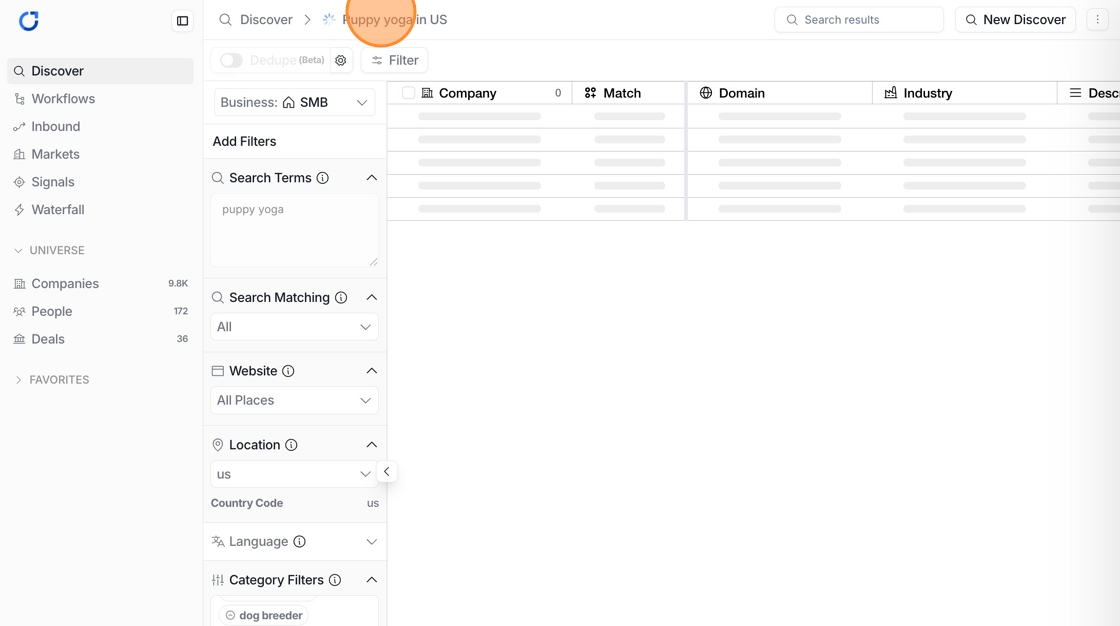
Here you’ll see all the companies that match your search criteria and are ready to be transferred to Workflow
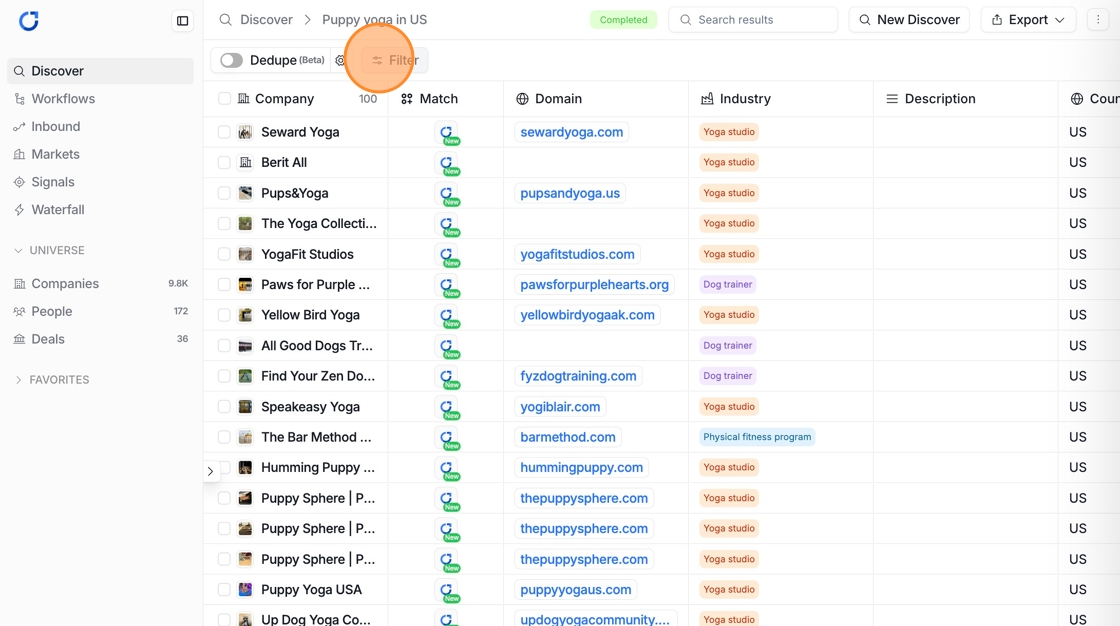
Use the filter option in Workflow to select and move only the companies that matter most
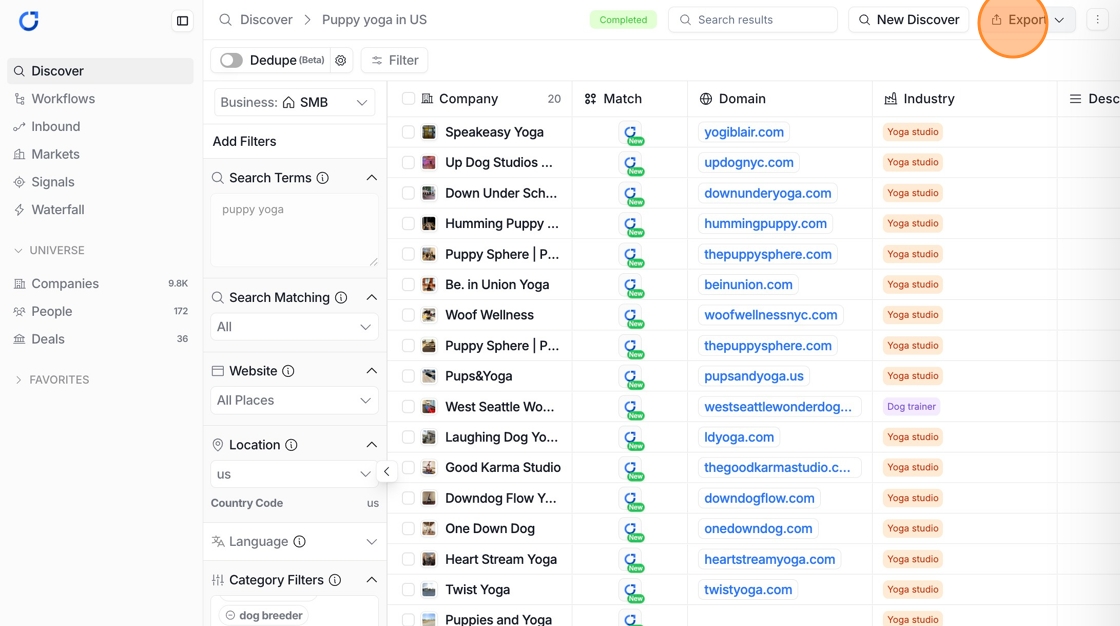
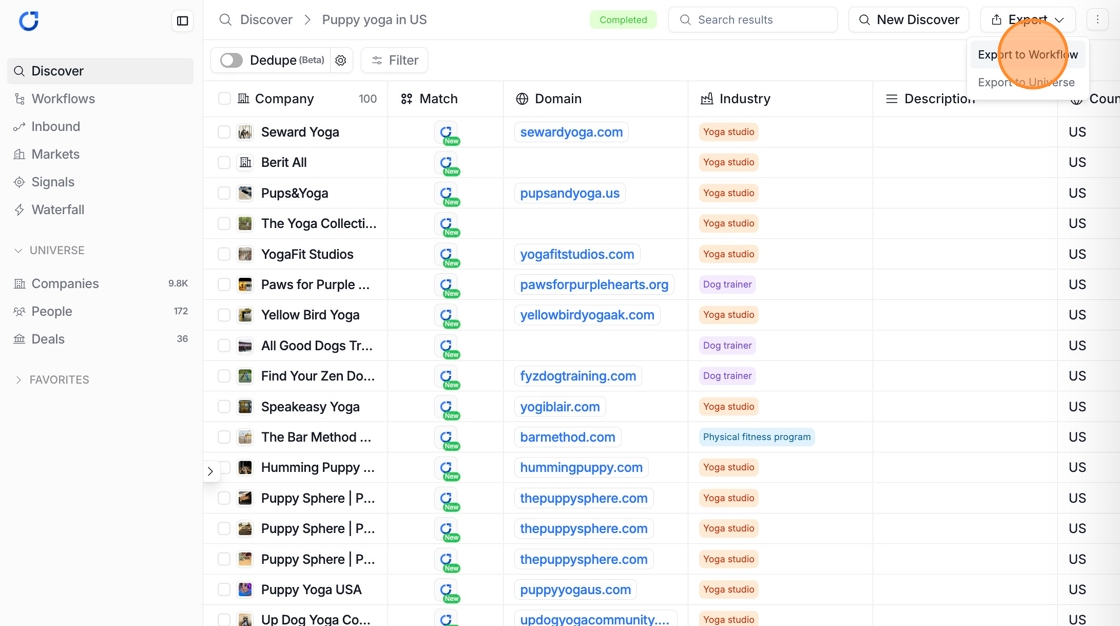
Click "Export"
Click "Export to Workflow"
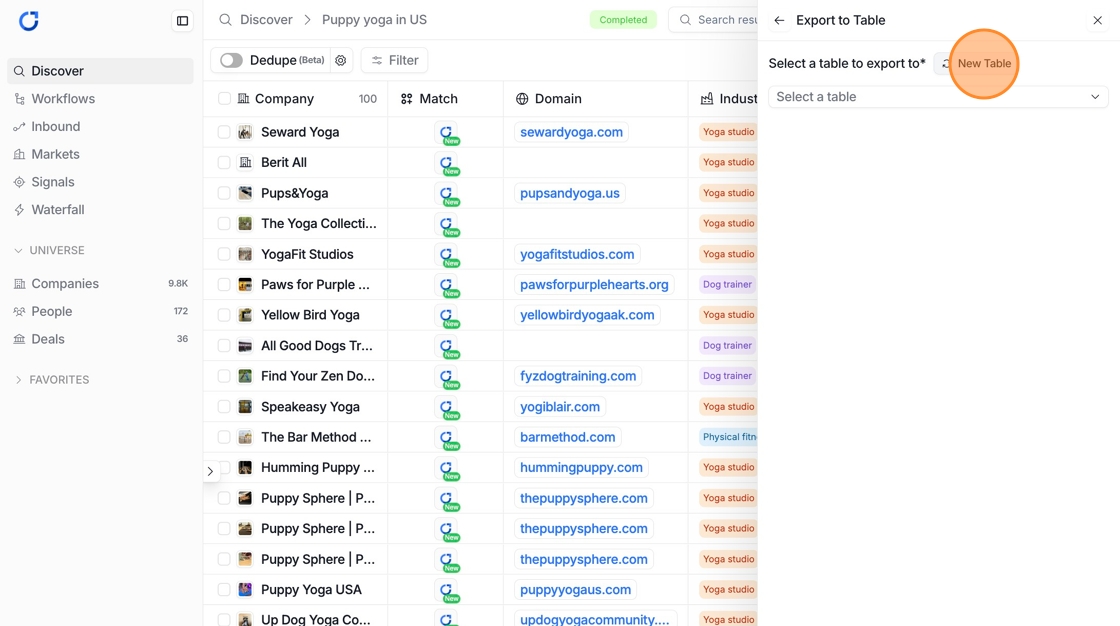
Click “New Table” to create a new list, or select an existing table to add companies to
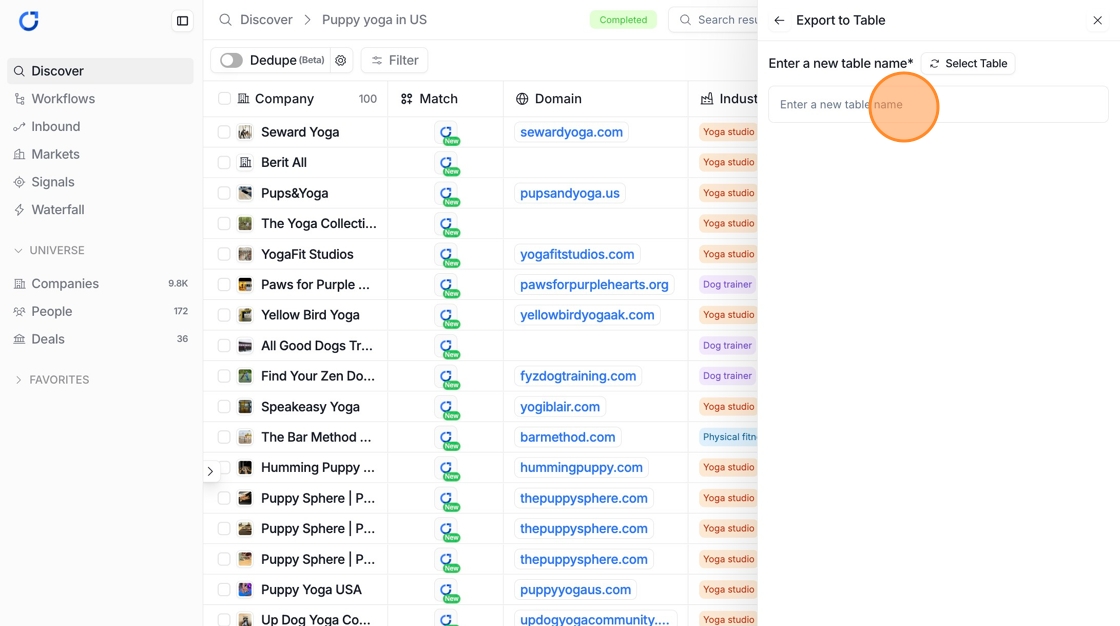
Enter a name for your new table
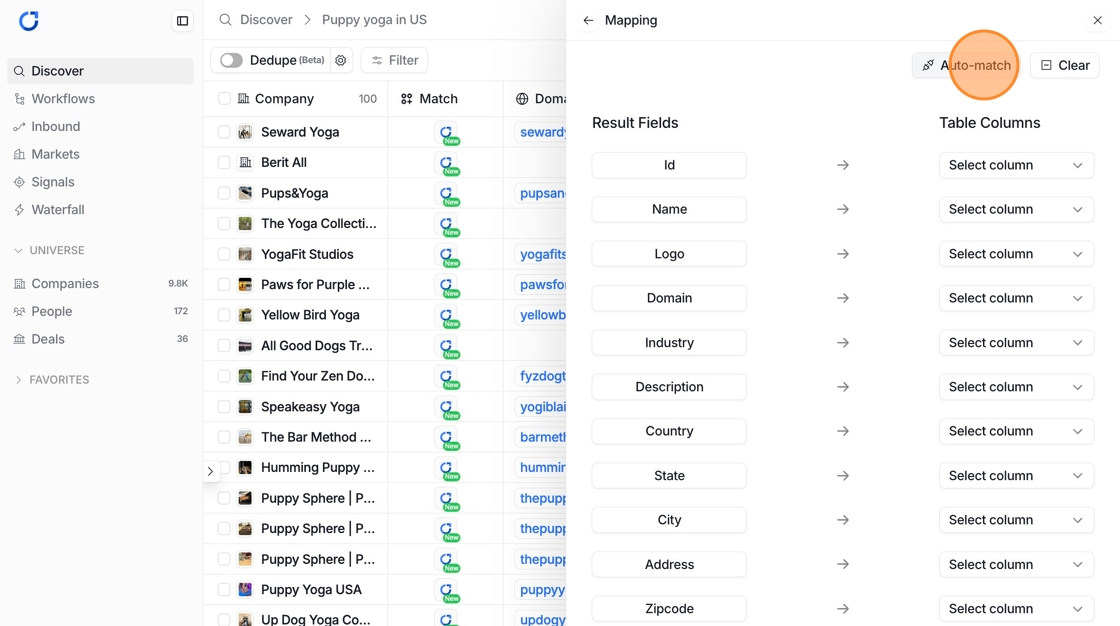
Click "Auto-match"
Click "Export"
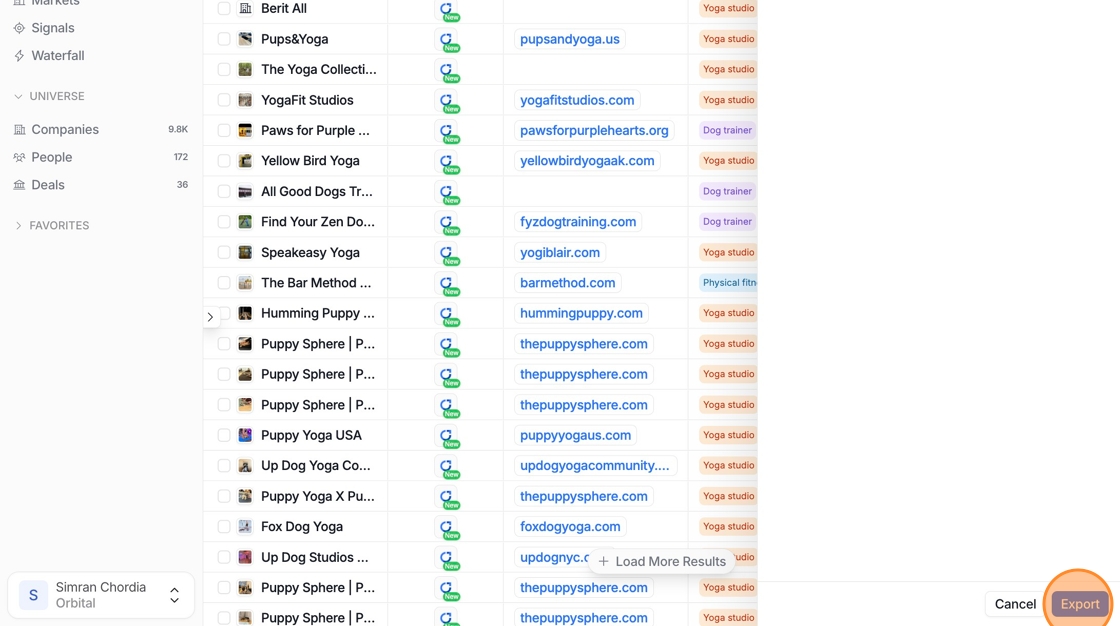
🎥 Exporting Accounts from Discover to Workflow
Watch this quick video to see how you can import companies via CSV into Workflow step-by-step
Importing Accounts from CSV to Workflow
This guide provides a straightforward process for importing companies using CSV files, making it easier to enrich your data in Orbital
Navigate to the 'Workflows' tab, then either create a new table or select an existing one where you would like to move and enrich the data
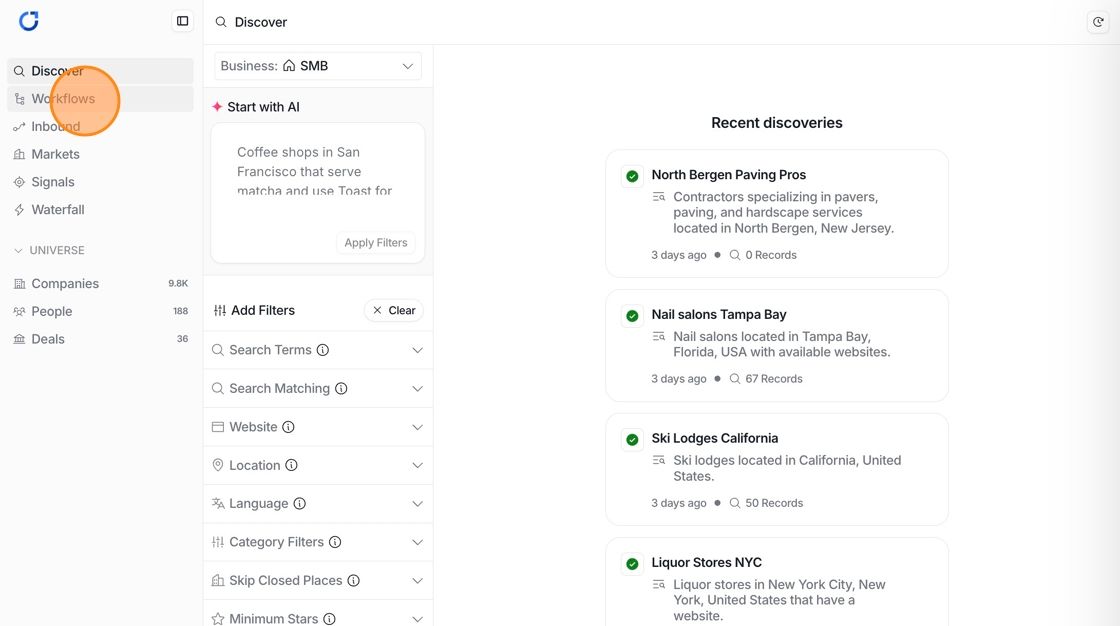
Click on 'Import / Export' and Select 'Import from CSV' from the dropdown
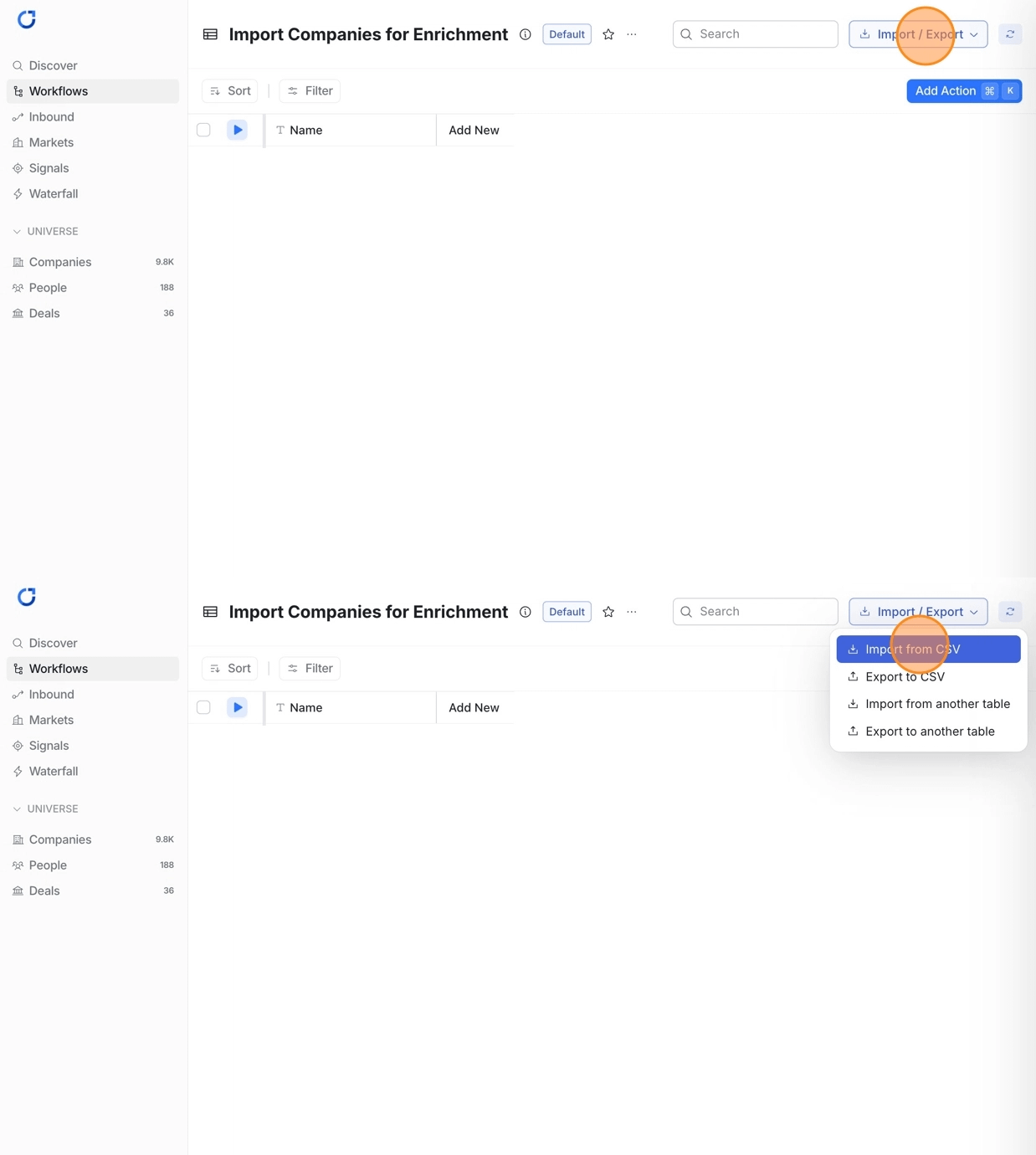
Click on 'Browse' to upload your company CSV file, then hit 'Import'
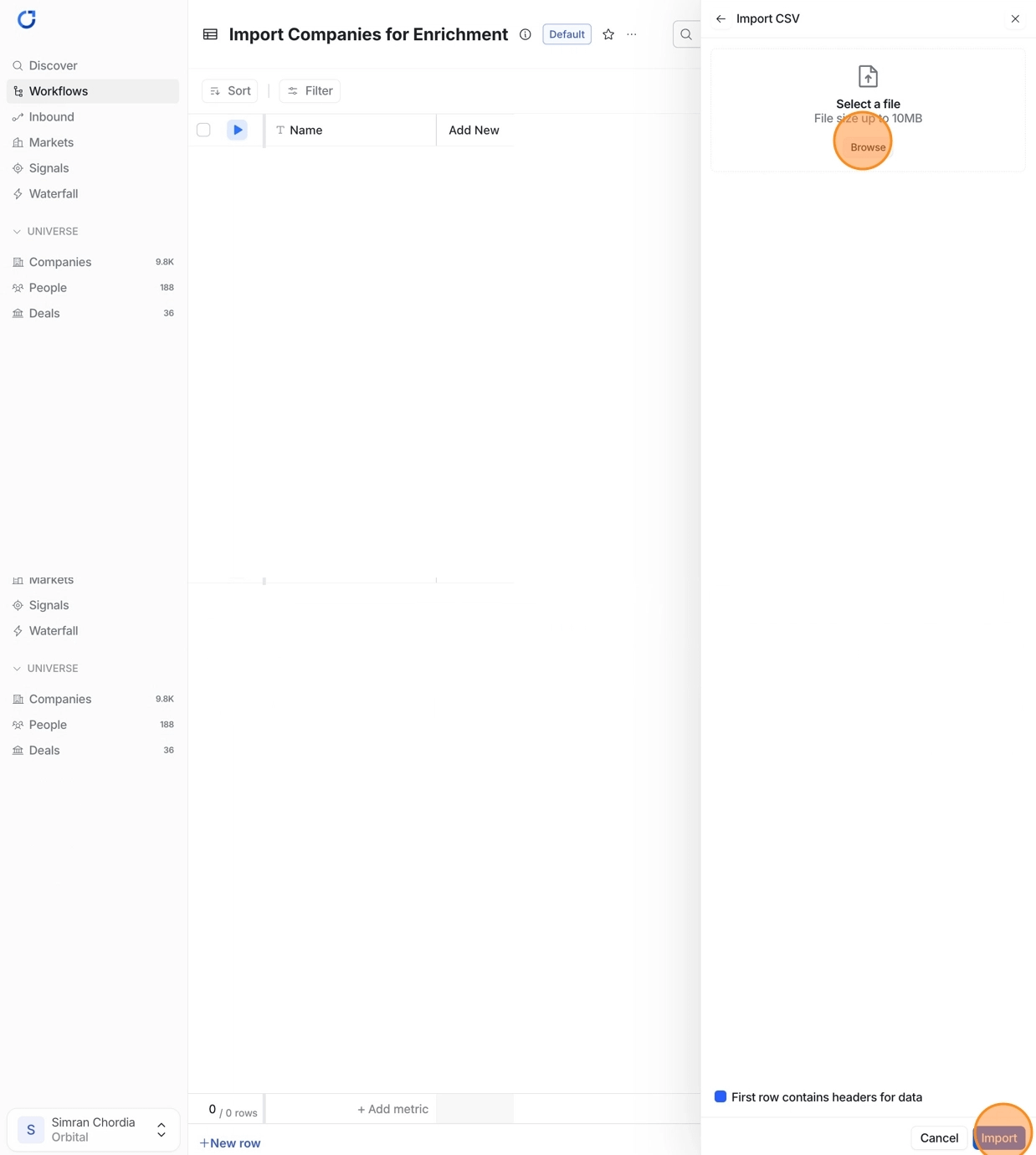
You’ll be taken to the mapping page, where you can map the data to existing columns
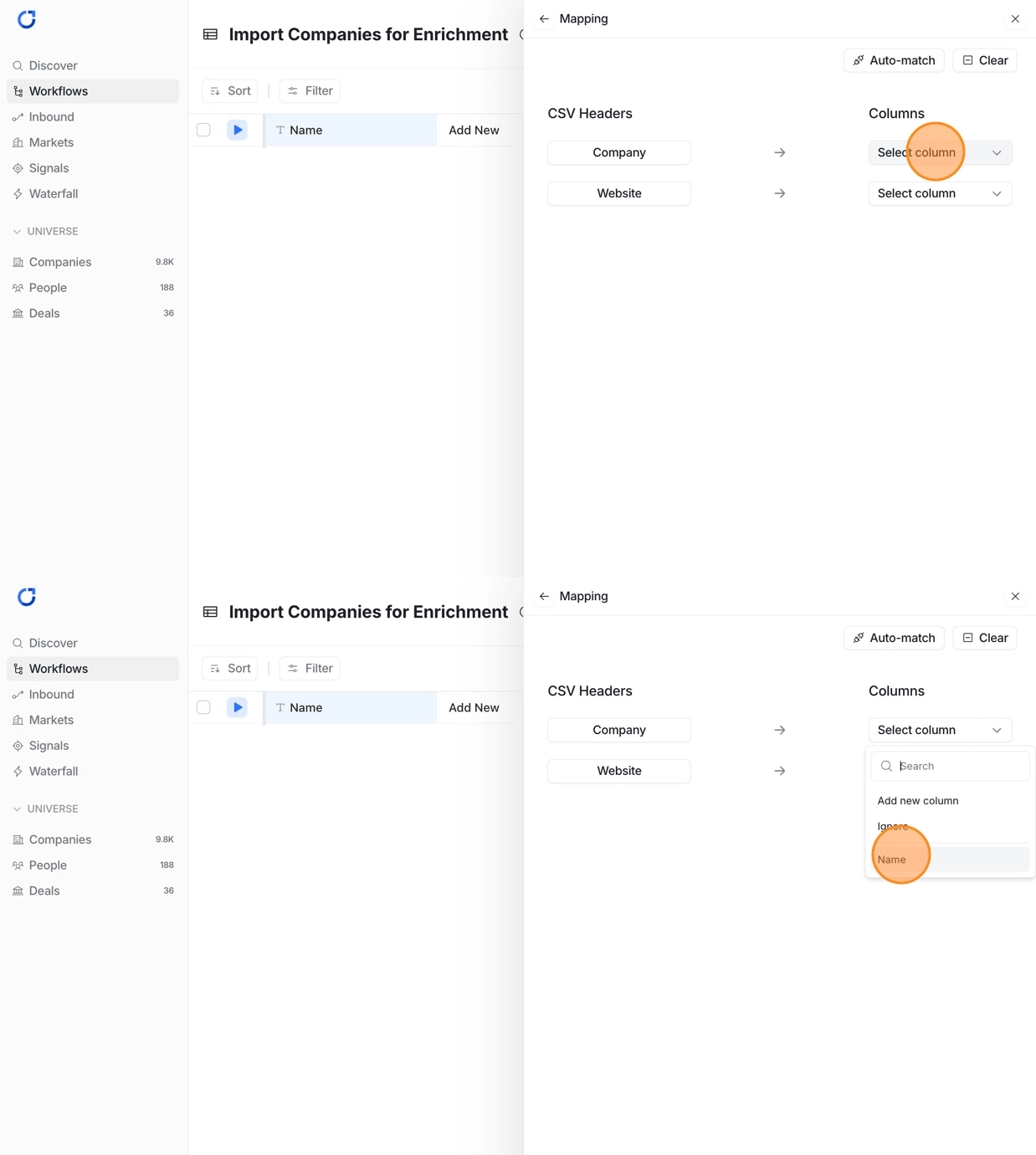
If a column doesn’t exist, you can create a new one directly from this page
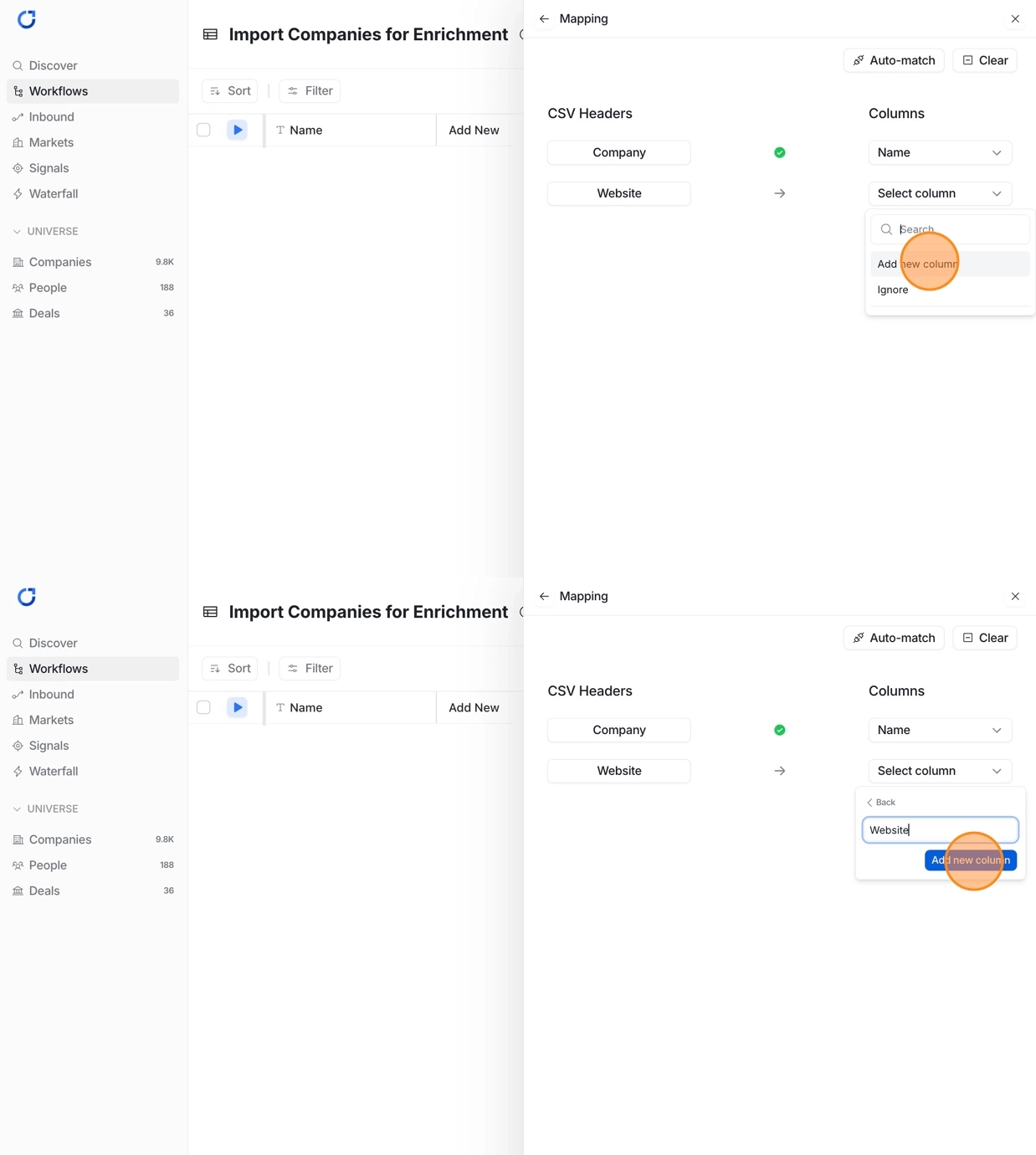
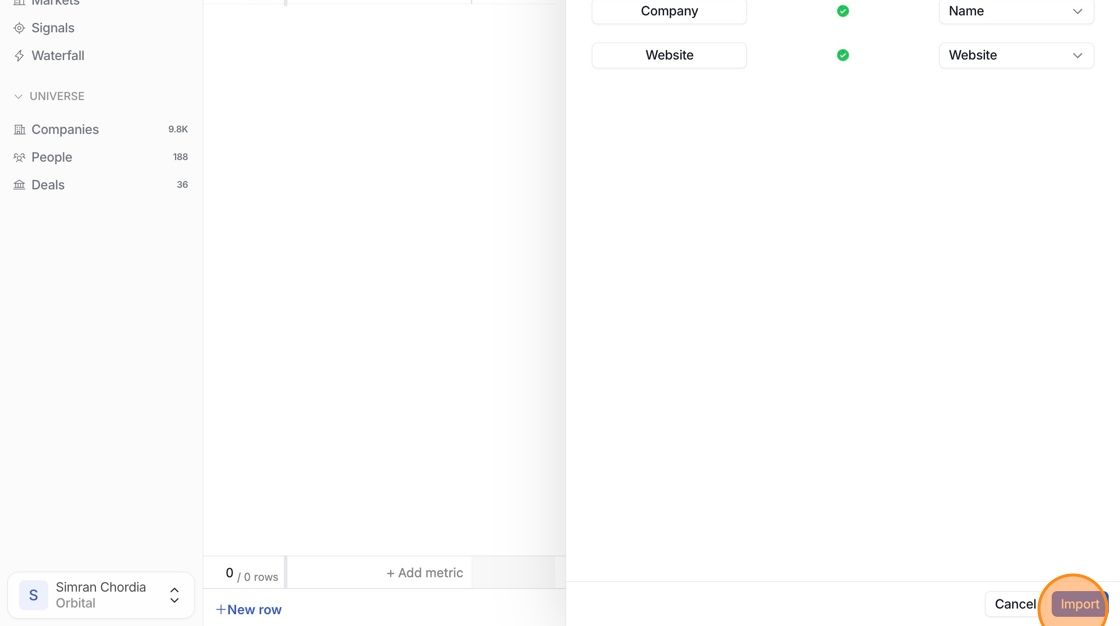
Once you've mapped the fields, click 'Import' - your data will be added to the Orbital workflow table